Breww has a suite of tools dedicated to building and optimising your field sales visits. All the basic functionality is included in your core Breww subscription, with a couple of advanced features mentioned here requiring an addon for a small extra fee.
Enabling on your user account
To use this tool, your user account must be marked as a Sales person (if it isn't already). This can be done by an administrator user account by going to Settings -> User & security settings clicking on the applicable user & toggling the option. This doesn't cost any extra, and is required for the features to show on your account.
To use the advanced routing options (which we highly recommend as the benefits are huge), you'll also need to have Advanced sales visit routing enabled on your account. Advanced sales visit routing is an addon (see pricing) which is paid for on a per-user basis (you only need to enable it for the applicable users). It comes with a 30 day free trial, so you can make sure you're getting the benefits before paying anything extra. You can also cancel at any time.
Managing sales visits
You can view your sales route by going to Customers -> View -> Sales visits. If you are an administrator, you can view the routes for all sales people, if not you can only see your own routes.
Scheduling visits
You can easily schedule a sales visit for any customer, lead or supplier from any of the following places:
- Using the button in the top-right of the page when viewing a sales route.
- From the
Newbutton in the top-right when viewing a specific lead, customer or supplier. - From the lead/customer "sidebar" using the button at the bottom of the page. This sidebar can be opened in a number of places to quickly view the entity, such as from the list of tasks or when viewing customers on a map.
We recommend initially planning the customers that you'd like to visit on a specific date, as there are tools available to help you later add additional visits to fill out any spare time with other local customers/leads.
Meeting/visit times
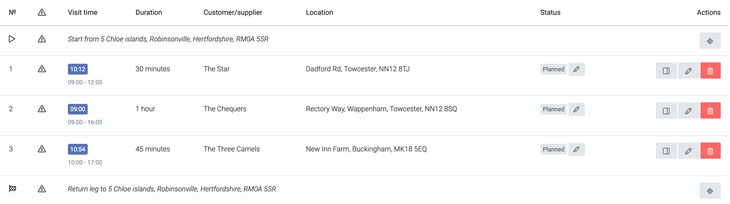
When scheduling a visit, you can enter the duration of the meeting and a start time. In addition, you can optionally enter a "Latest start time". To get the most benefit out of the optimisation features, it's important to understand how these inputs work.
- If you only enter a start time and leave the "Latest start time" input blank, the meeting will be scheduled for the start time given.
- If you enter both a start time and a "Latest start time", you are effectively telling Breww that you don't mind when exactly the meet starts, but it must be in the time window given. For example, you could enter 12:00 to 17:00 for an afternoon meeting.
When using route optimisation, we recommend giving start time windows over specific start times where possible, as this allows Breww to choose the optimal start time for you automatically.
Managing individual visits
Visits can be managed using the buttons on the row of the visit. There's an edit button next to the status to make quick updates, as well as an edit button that allows you to make any changes to the visit, such as start times. Finally, there's a button to open the customer's sidebar to see their recent activity, add tasks and record notes.
Route optimisation
Having added each of your customers to your day of visits, if you have the Advanced sales visit routing addon enabled, you can get Breww to plan your day for you in a few clicks. Breww will review all your visits, their required start times (or start time windows) and how long it takes to drive between each. (This leverages our advanced deliveries routing platform for breweries).
Start & end addresses
When routing, Breww needs to know your start and finish location. You can choose addresses from the select box. The options will be each Site set up on your account, plus any Personal addresses.
Personal addresses, allow you to enter your own home address, or a commonly used hotel, for example. Unlike Sites, they are associated with your user account only and can only be seen/used by yourself or admin users. Personal addresses can be managed by going to your profile (clicking on your photo or initials in the top-right of all pages).
Optimising the route
Simply click the Optimise sales route automatically button below the list of visits and Breww will automatically determine the best order to visit each customer to ensure that your meeting start times are met (this is why entering a time range is beneficial over a very specific start time).
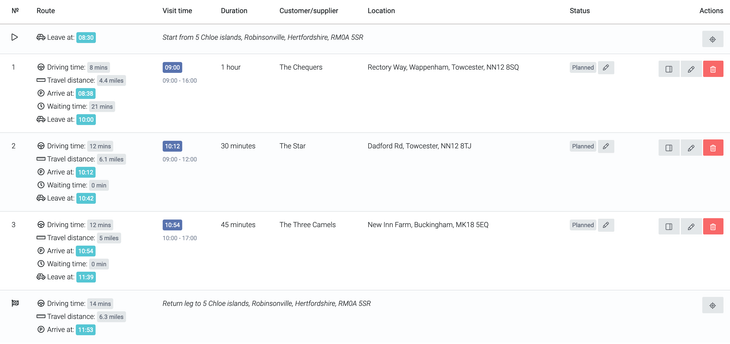
The visits will now be shown in the right order, along with helpful information on driving times, distances, arrival times and more for each visit.
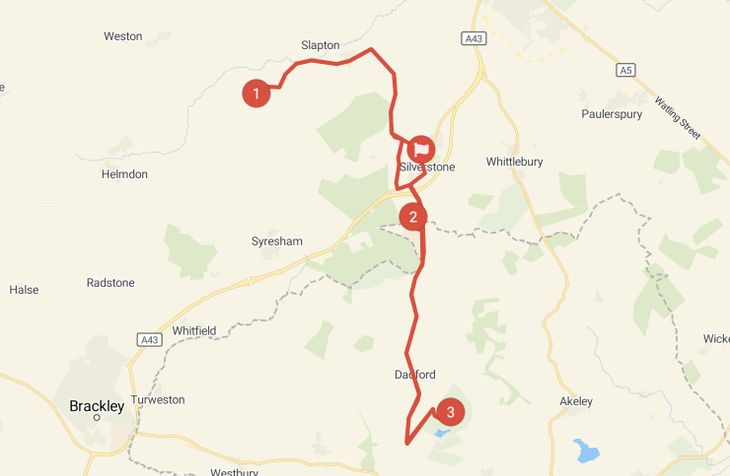
You'll also see the route plotted on a map at the bottom of the page.
You now have a perfectly optimised day for sales visits, saving you time and fuel costs.
Adding additional visits for nearby customers
If you want to get even more out of your day on the road, you may wish to add in visits to other customers/leads that are located nearby. If you have access to the Advanced sales visit routing addon, you'll see an extra button (just above the map) labelled Find others to visit.
When clicking this button, you'll get prompted to filter which customers/leads are shown and then any matching the criteria will be marked on the same map as your existing route. Clicking on a customer allows you to see who they are, open their sidebar with activity history, and quickly add them into your day.
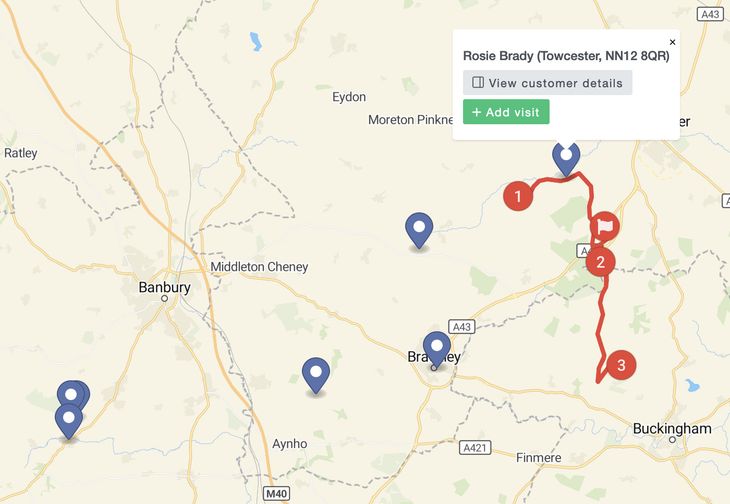
Once you've finished adding everyone extra, please refresh the page and re-optimise your route.
Linked tasks for sales visits
Breww can automatically create a task for each of your sales visits, so that your visits appear in your tasks dashboard alongside everything else you need to do. This is especially useful if your team uses the tasks feature as their primary daily planner.
Enabling linked tasks
To enable this feature, go to Settings -> Customer settings and turn on Create tasks for sales visits. When you enable this, Breww will automatically create tasks for all your upcoming sales visits from today onwards that have not yet been completed. A message will confirm how many tasks were created.
How it works
Once the setting is enabled:
- Scheduling a new visit will automatically create a task assigned to the salesperson, linked to the customer and due at the visit's scheduled date and time.
- Changing a visit's status will update the linked task to match. For example, marking a visit as "In progress" will set the task to "In progress", and completing the visit will automatically complete the task.
- Editing a visit (e.g. changing the date, time or customer) will update the linked task to reflect the changes.
- Deleting a visit will also delete the linked task.
The linked task will show the customer name in its title so you can easily identify which visit it relates to.
Managing visits from the tasks dashboard
When viewing a sales visit task in the tasks dashboard, you will see two action buttons instead of the standard task controls:
- View day -- Opens the sales visits page filtered to the relevant date and salesperson, giving you a full view of the day's schedule.
- Update status -- Opens the quick status update form for the sales visit directly from the task. Changing the visit status here will automatically update the task.
To reschedule or make other changes, edit the sales visit directly and the linked task will update automatically.
Disabling linked tasks
If you later disable the Create tasks for sales visits setting, all pending sales visit tasks due from today onwards will be removed. Any tasks that have already been completed will not be affected.