
Use Vehicle Profiles to further customise delivery routing
This feature requires Breww's Advanced Deliveries Addon to function. Find out more or subscribe here.
You can create vehicle profiles (and assign vehicles to them) to fine-tune how Breww's Advanced Deliveries routing works. Get started at Settings -> Deliveries -> Vehicles.
Vehicle profile options
When defining a vehicle profile, you can customise the following options (all of which are optional)
-
Attributes - Allows you to add attributes (or "features") to a vehicle and then on some deliveries require these attributes. This will ensure a suitable vehicle is used for those deliveries. Examples include "Tail-lift" or "2-person-delivery".
-
Maximum distance the vehicle can cover in one day
-
Earliest run start time and Latest run end time - the vehicle's working hours. The latest end time is when the vehicle must be back at its end location.
-
Flexible departure window - lets a vehicle leave up to this long after its earliest start time. Rather than setting off early and waiting outside a customer that isn't open yet, the vehicle leaves as late as it can. If a vehicle does more than one run a day, only its first departure is affected. This is used when optimising a whole delivery date, not when re-optimising a single run.
-
Speed factor - Allows you to adjust the speed of a vehicle in comparison to what Breww's routing engine thinks is correct.
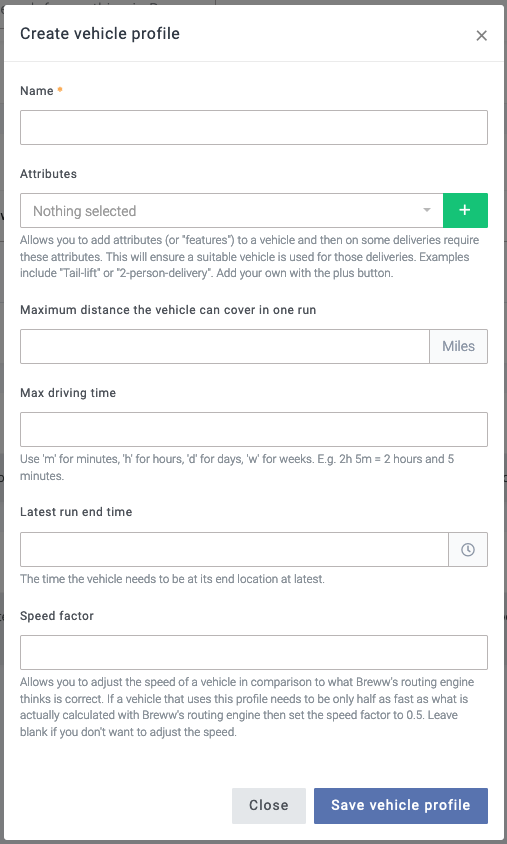
Once a vehicle profile has been defined, this can be assigned to a vehicle. These options are grouped into "Vehicle Profiles" to allow them to be easily shared across multiple vehicles.

Driver hours
The Driver hours section sets the daily limits Breww plans each vehicle's day around. Every option is optional, and leaving one blank means there's no limit.
-
Driver hours preset - fills in the driver hours and driver break fields with the usual values for a set of driving rules. You can change any of the values afterwards. The presets are:
- EU / GB HGV (EC 561/2006)
- GB domestic (vans)
- US FMCSA (property-carrying)
- Canada federal (south of 60°N)
- Australia NHVR standard hours (solo)
- New Zealand work time rules
-
Max driving time - the most driving the vehicle can do in one day.
-
Maximum working time in one day - driving, drops and waiting combined.
-
Maximum time on duty in one day - how long after the start of the day the vehicle must be back, or at its overnight rest.
-
Minimum daily rest - the shortest rest allowed between two days of a multi-day run. This is used as the default for new overnight rests. See Planning multi-day delivery runs with overnight rests.
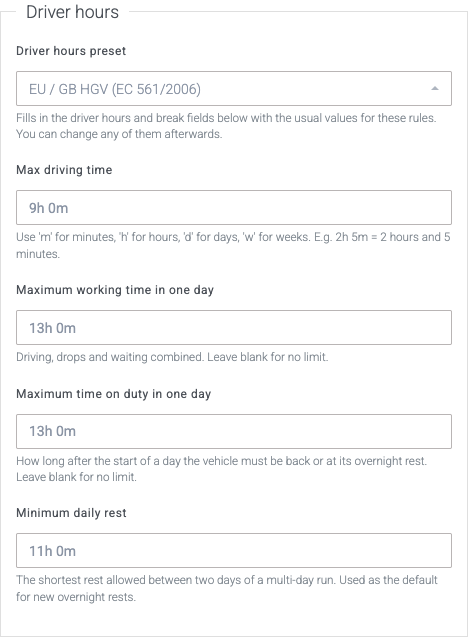

The presets are a starting point, not a guarantee of compliance. Check the values against the rules that apply to your drivers. It's your responsibility to make sure your runs comply with any applicable driving regulations.
Driver breaks for a profile
Each profile can have its own driver break, in the Generate driver breaks in delivery runs section. Choose:
-
Use the account default - vehicles on this profile use the break set in your delivery settings.
-
No automatically scheduled break - no break is scheduled for vehicles on this profile, even if your account has a break set.
-
Time window (e.g. lunch break) or Drive time (e.g. driving regulations) - a break of the profile's own, set up in the same way as the account-wide break. See How to schedule delivery driver breaks into your delivery runs.
The Vehicle profiles list on the vehicles page includes a Driver hours column summarising each profile's break and limits.
Driver hours warnings after optimising
After optimising, Breww checks each run against its vehicle's driver hours and warns you about:
-
a stretch of driving without a break that's longer than the break allows
-
a day with more driving than the profile's maximum driving time
-
an overnight rest that's shorter than its minimum rest
These are warnings: the plan is still saved, so you can review it and adjust it.
Delivery-specific options
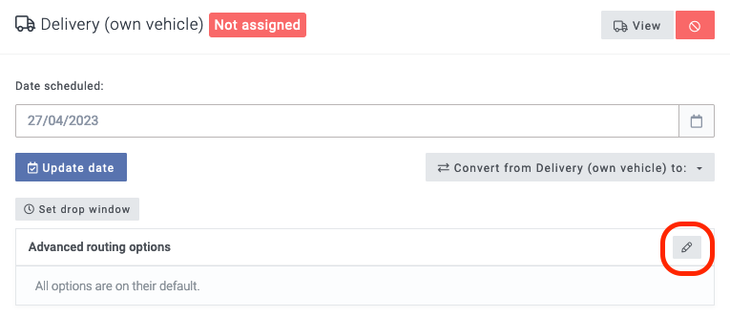
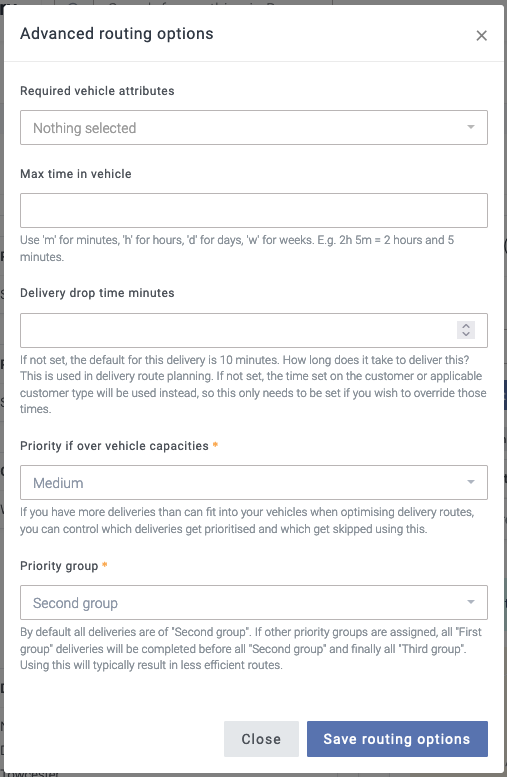
When on an order/delivery, you can apply the advanced routing options:
-
Required vehicle attributes - Require the vehicle delivering the order to have an attribute as defined on the vehicle profile.
-
Max time in vehicle - Ideal for items that are temperature controlled and must be delivered early.
-
Delivery drop time - Set on Customers and Customer Types, and can be overwritten on a per-delivery basis.
-
Parking and access time - how long it takes to park and get to the door at a customer, on top of the drop time. Set it on the customer's Overview tab using the pencil button next to Parking and access time. When several drops share an address, it's only counted once.
-
Priority if over vehicle capacities - If you have more deliveries than can fit into your vehicles when optimising delivery routes, you can control which deliveries get prioritised and which get skipped using this.
-
Priority group - By default, all deliveries are of "Second group". If other priority groups are assigned, all "First group" deliveries will be completed before all "Second group" and finally all "Third group". Using this will typically result in less efficient routes.


Why a delivery couldn't be planned
If Breww can't fit a delivery into any run when optimising, the optimisation message explains why, for example because it can't be reached within its drop window, doesn't fit into any vehicle's weight capacity, or would take a driver over their maximum working time for the day.
Looking for driver breaks?
We have a separate guide on how to schedule these at How to schedule delivery driver breaks into your delivery runs.