Our Tasks feature is an excellent way of keeping on top of your work day, setting reminders, and delegating work among your team. You can even assign tasks directly to your customers, meaning you can have prompts that record actions against your customers when these tasks are actioned and completed.
To create a task, go to Tasks -> Add task. This will ask you to enter a Title for the task and a Due date. It also allows you to flag this task as Urgent, meaning it will display with an orange warning colour to make urgent tasks more obvious.
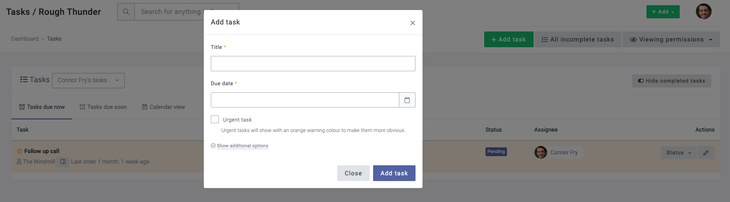
Alternatively, you can set a task directly linking to a customer account on their customer page through the overview tab by scrolling down to "Upcoming task" and using the Add task button.

You can set the task with this initial basic information or select Show additional options, which will give you more specific details to enter surrounding the task.
You can add the following details:
- Description
- Customer
- Due time
- Repeat
- Assigned users
- Assigned user groups (all users in group will be assigned)
- Task creation method
Each gives you great versatility in operating your tasks and ensures the task is tracked and recorded.
There are three windows that you can access to display your tasks:
- Tasks due now
- Tasks due soon
- Calendar view
Users can access any tasks they have created or assigned to them, with three clear windows to choose from to display their tasks.
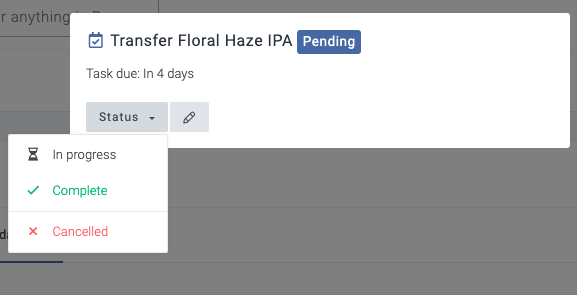
When a task is actioned, you can change its status to In progress or Complete. If marked as In progress, this is just to notify that the task has been started and will need to be re-marked on completion.
You can also permit other users to view your tasks for a limited period. For instance, if you are going on holiday and need a colleague to look after your tasks for one week only, you can grant them the ability to keep a tab of your tasks for you, meaning nothing gets missed and time is saved when handing over! You can do by clicking Viewing permissions->Invite users to view my tasks where you will be able to select the user and set the expiration date for the permission. Need to amend a viewing permission? No problem you can always do this in Viewing permissions->Manage permissions.
Automatic tasks for sales visits
If your team uses sales visits to plan and manage in-person customer meetings, Breww can automatically create a task for each sales visit. This means your sales visits will appear alongside your other tasks, giving you a single place to see everything that needs your attention for the day.
Enabling the feature
To turn on automatic task creation for sales visits, go to Settings -> Customer settings and enable the Create tasks for sales visits option.
When you enable this setting, Breww will immediately create tasks for all upcoming sales visits (from today onwards) that have not yet been completed. You will see a message confirming how many tasks were created.
If you later disable this setting, all pending sales visit tasks due from today onwards will be removed. Completed tasks will not be affected.
How sales visit tasks work
Once the setting is enabled, Breww will automatically:
- Create a task when a new sales visit is scheduled. The task will be assigned to the salesperson, linked to the customer, and set to the due date and time of the visit.
- Update the task status when the sales visit status changes. For example, marking a visit as "In progress" will update the task to "In progress", and completing the visit will automatically complete the task.
- Delete the task if the sales visit is deleted.
The task title will include the customer name so you can easily identify which visit it relates to.
Managing sales visit tasks
Sales visit tasks work slightly differently from regular tasks. Because these tasks are controlled by the sales visit, the standard status dropdown, edit button and re-open button are not shown. Instead, you will see two action buttons:
- View day -- Opens the sales visits page filtered to the relevant date and salesperson, so you can see your full schedule for that day.
- Update status -- Opens a quick status update form for the sales visit. Changing the visit status here will automatically update the task status as well.
To make changes to the task (such as rescheduling or reassigning), edit the sales visit directly and the linked task will be updated to match.
Cancelling/soft-deleting a task
As well as marking a task as 'In-progress' or 'Complete', you can also mark a task as 'Cancelled'. You will be able to do this by selecting the edit pencil on the task and selecting Cancelled. The task won't be fully deleted, but will no longer be due and will instead show as 'Cancelled'; however, you will have the ability to re-activate the task by selecting the edit pencil followed by Pending.