We recommend configuring your settings before using the production suite in Breww; you can find these settings by heading to Settings->Production settings->General production settings.
Basic batch settings
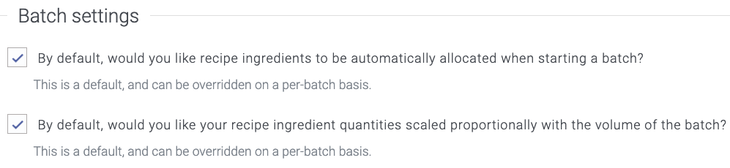
By default, would you like recipe ingredients to be automatically allocated when starting a batch?
At the top of batch settings you will find two checkboxes; selecting the first will mean that by default, when you start a batch, the Auto-allocate ingredients** checkbox will be selected. You can override this on a batch level when starting a batch. If you would rather add your ingredients as you go on a brew day rather than allocate them at the start, then you can have this unchecked.
By default, would you like your recipe ingredient quantities scaled proportionally with the volume of the batch?
The second refers to situations where you enter a batch volume that differs from your recipe; for example, if your recipe was written for 1000 litres, and you are brewing a 2000 litre batch, would you like Breww to scale these quantities automatically for you? This will mean that you can have one recipe for a beer and have the flexibility to brew batches of different sizes, as Breww will scale the ingredient quantities. If you would rather Breww didn't automatically do this, you can leaved this unselected; you can overide this on a batch level when starting the batch.
Daily batch readings
Your daily batch readings will show as a reminder on your production dashboard and apply to all vessels. Here, you can simply enter how many times you would like Breww to remind you to take fermentation readings each day.

Default batch number prefix for merged batches
In Breww, you can merge batches into other batches. The original gyle numbers will be maintained, provided that you are transferring a batch into the entirety of another. If the batch being merged into has already had packagings or the batch is split, then a new gyle is created to maintain the integrity of the original batch for traceability. In this scenario, you can choose to have a batch number follow on from your usual number sequence or use a prefix for merged batches to distinguish merged batches from your core gyle number sequence. You can simply enter the prefix here.
Show individual turns on batch schedule for multi-turn batches
The Show individual turns on batch schedule for multi-turn batches checkbox refers to the batch schedule visualisation, where your scheduled batches are viewed on a calendar; you can either have this present as 'one' block on the batch schedule or as three individual blocks (in the example of a 3 turn batch) representing the turns.
Checkbox checked

Checkbox unchecked

Require a recipe on all batches
The Require a recipe on all batches checkbox provides some error proofing, as it prevents a batch from being started if no recipe has been selected. If this is unchecked, you can create and start batches without using a recipe.
Preferred batch schedule vessel grouping
Your batch schedule can be viewed and organised either by vessel type or vessel group.
If organising this by vessel type example:
- Brewing systems
- Fermenter
- Brtie tank
If organising by vessel group example:
- Brewing systems
- Primary
- Secondary
Units of measurement
Unit system
Here, you can choose to use the Metric or US Imperial system. There is also a checkbox to choose whether to allow stock items to use any unit of measurement (from either the Metric or US Imperial systems); however, the unit system you selected previously will be used for vessel volumes.
Volume unit to use for all production and recipe volumes
You can then select a Volume unit to use for all production and recipe volumes, which refers to the units used when producing, transferring and packaging batches.
Packaging approvals
These settings control how pre-packaging and post-packaging approvals work. For full details on packaging approvals, see Beers/drinks and packaging approval.
Default packaging approval templates
You can set a Default pre-packaging approval template and a Default post-packaging approval template for your account. These act as brewery-wide fallback templates and will be used for any beer that does not have its own approval template configured directly on the beer.
This is useful if most of your beers share the same quality checks before or after packaging. Rather than assigning the same template to every beer individually, you can set it once here and only override it on specific beers where needed.
When Breww determines which approval template to use for a packaging, it follows this resolution order:
- Container type override (only in Per planned packaging mode) — if the beer has a specific template configured for the container type being packaged, that template is used.
- Beer-specific template — the template assigned directly to the beer on its detail page.
- Brewery-wide default — the default template set here in Production settings.
If none of these are configured, no approval will be created for that packaging.
When a beer inherits its approval template from the brewery-wide default rather than having one set directly, a badge will be displayed on the beer detail page next to the template name to indicate this.
Post-packaging approval delayed release control
This setting controls whether delayed packaging releases can be released when post-packaging approvals are outstanding. This is useful if you want to ensure that packaged stock is not released for sale until post-packaging quality checks have been completed and approved. There are three options:
-
No restrictions — delayed releases can be released for sale at any time, regardless of whether there are outstanding post-packaging approvals.
-
Prevent releasing if outstanding post-packaging approval (default) — if a delayed release is linked to a batch or planned packaging that has an outstanding (unapproved) post-packaging approval, the release will be blocked. You will not be able to release the stock for sale until the post-packaging approval has been approved. Automatic scheduled releases will also be held back until the approval is completed.
-
Prevent releasing and auto-release upon approval — works the same as the option above, but when a post-packaging approval is approved, any pending delayed releases that are no longer blocked will be automatically released for sale. This means you do not need to manually release the stock after approving the post-packaging checks.
This setting works with both Per batch and Per planned packaging approval modes. In Per batch mode, all delayed releases for the batch are blocked until the batch-level approval is completed. In Per planned packaging mode, only delayed releases linked to the specific planned packaging with an outstanding approval are blocked.
Require delayed packaging release
When the Require delayed packaging release checkbox is enabled, all packagings must use a delayed release. The option to release stock for sale immediately will not be available during the packaging process. Instead, the packaging form will default to a manual delayed release, and you will need to choose either an automatic or manual delayed release option.
This is useful if your brewery's workflow requires all packaged stock to go through a holding period (e.g. for conditioning or quality checks) before being made available for sale. This setting applies to both the web interface and the Breww mobile app.
For more information on delayed releases, see How to package drinks for bottle/cask conditioning without releasing it for sale immediately.
Transfer approvals
Breww supports transfer approvals to help you maintain quality control when moving batches between vessels. These settings control whether approvals are required before and/or after transfers.
For comprehensive details on setting up and using transfer approvals, see our dedicated Transfer approvals guide.
Pre-transfer approvals
Choose how pre-transfer approvals should behave:
-
Always require — a pre-transfer approval must be completed and approved before any transfer can proceed. Each approval can only be used for one transfer.
-
Always require (but can reuse/share) — a pre-transfer approval must be completed, but the same approved instance can be linked to multiple transfers from the same batch.
-
Can optionally be done (default) — pre-transfer approvals are available but not mandatory.
-
Never do — pre-transfer approvals are disabled.
If you select a mode other than "Never do", you can also choose a Default pre-transfer approval template that will be pre-selected when creating new approvals.
Post-transfer approvals
Choose how post-transfer approvals should behave:
-
Always require — a post-transfer approval is automatically created after each transfer and must be completed.
-
Always require (but can reuse/share) — a post-transfer approval is required, but you can reuse an existing approved one from the same batch.
-
Can optionally be done (default) — post-transfer approvals are available but not mandatory.
-
Never do — post-transfer approvals are disabled.
If you select a mode other than "Never do", you can also choose a Default post-transfer approval template.
Packaging
Prevent packaging when not enough stock items are available
If this option is checked, you will not be able to complete a packaging without having all the required stock items available (as per product and/or container type requirements), such as an empty can and lid when packaging a can. You will be shown a warning when unchecked and can adjust or continue anyway, even though you do not have the 'required' stock items.
Once you have completed these options, you can select Save general production settings.
Setting your default ABV calculation for duty purposes 💂♂️
You will be able to set your default ABV calculation for duty purposes by heading to Beer duty/Alcohol duty->Annual estimate & settings.
You will be able to select from the options below:
- Advertised ABV entered on the beer (this will use the ABV set directly on the beer)
- Automatically calculated from fermentation readings (this will use the ABV on a batch level from the gravity readings entered on the Analysis tab)
- Entered manually (this will require you to enter the ABV manually on the batch)
The option chosen here will define the default ABV calculation method for all batches created in Breww. This is just a default, and it can be overwritten on any batch to force it to use a different method.