If you have followed the 🧰 Getting Started Guide, you will have already set up your brewing system and vessels and will be ready to start using Breww to process your batches.
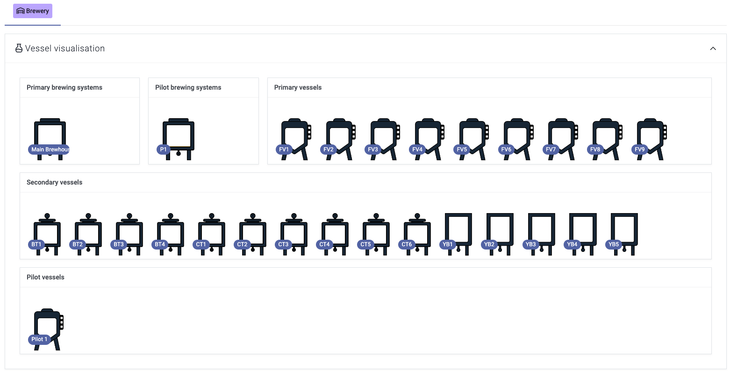
Vessel visualisation
Your vessels are split into different groups that you may have already personalised - if not, you will be able to do this by following the Vessel groups help guide!
By default, these will be categorised into the groupings below:
-
Primary brewing systems
-
Primary vessels
-
Secondary vessels
If you have a pilot brewing system and vessels, then these will also show. You can view the key data surrounding the vessel by clicking on the vessel. If you have multiple sites that you use for brewing, then you will be able to switch between sites by selecting the site tab at the top of the visualisation; in this example, there is a single site for brewing called 'Brewery'
Dashboard tabs
The production dashboard includes several tabs that provide different views of your production activities:
Overview tab
Shows your vessel visualisation and in-progress batches at a glance.
Batches tab
Displays your in-progress batches as a list alongside key data snapshots.
Readings tab
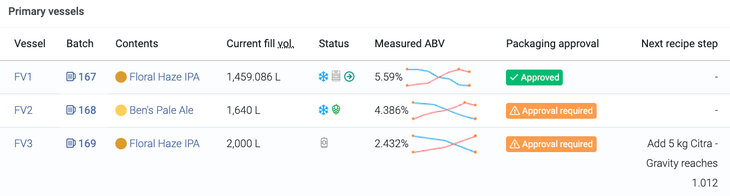
Shows batches that are due for fermentation readings today, based on your daily batch readings settings.
Transfers tab
The Transfers tab provides an overview of planned vessel transfers and their approval statuses. This tab shows:
-
Today's planned transfers — all transfers scheduled for today based on your batch vessel plans, showing the source and destination vessels, approval statuses, and actions to perform the transfer
-
Today's unplanned transfers — any transfers that were completed today but weren't in the planned schedule
-
Tomorrow's planned transfers — a preview of transfers scheduled for tomorrow
-
14-day transfer summary — a table showing the number of planned transfers and batches for each of the next 14 days
The tab shows a badge with a count of incomplete transfers for today, helping you quickly identify outstanding work.
For each transfer, you can see the pre-transfer and post-transfer approval statuses:
- Approved (green) — the approval has been completed
- Pending (yellow) — an approval is required but not yet completed
- N/A (grey) — approvals are not configured
- Not yet (grey) — applies to post-transfer approvals that will be created after the transfer
For full details on setting up and using transfer approvals, see our Transfer approvals guide.
Packaging tab
Shows planned packagings for today and tomorrow, along with their approval statuses.
Cleaning & maintenance tab
Once any cleaning and maintenance processes and schedules are created, you will see any records that are due, that can be selected for completion.

Navigation
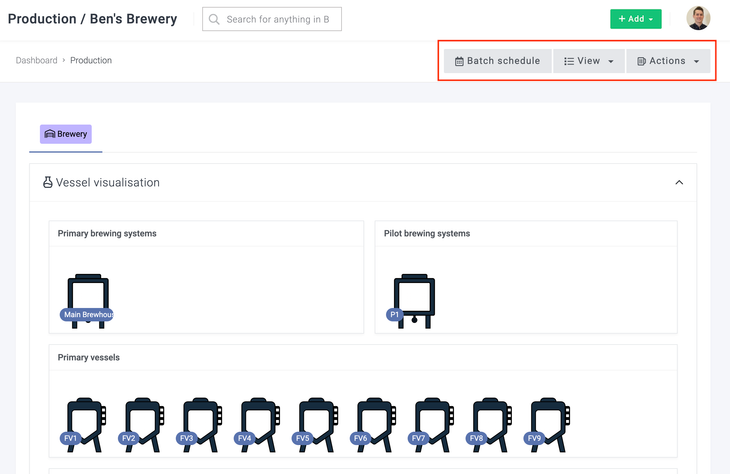
There are three buttons on the production dashboard to navigate around the production suite. This article will define the options listed here, but the features under these options will be covered later on in more detail in the Production in Breww guide.
-
Batch schedule
-
View
-
Actions
Batch schedule
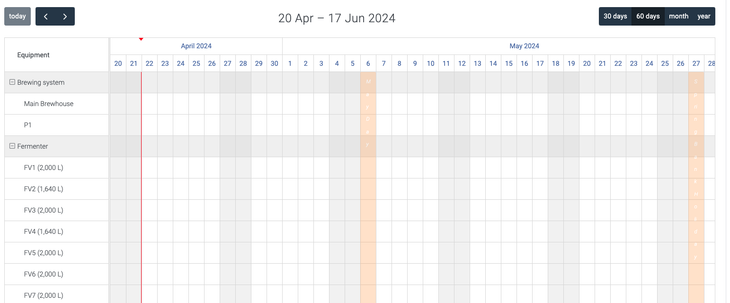
By selecting this button, you will see a calendar that includes all of your vessels and equipment, where you can schedule your batches and vessel usage. You will also be able to select to view your scheduled batches with your contract brewers and your 'planned packages' here.
View
A series of options will show when you select the View button.
-
All batches - This will take you to a full list of batches that have been planned, are in-progress or are completed
-
Beers - This will take you to your main list of beers, where you can create new beers (if you are producing a different drink type, this option will show as 'Drinks').
-
Recipes - View your existing recipes, create new recipes, and create vessel plans from here.
-
Vessels - View your vessels as a list, create new vessels, and create vessel statuses, groups and plans.
-
All equipment - View all of your brewery equipment, including the brewhouse and vessels, as well as any additional equipment such as pumps and canning lines
-
Cleaning & maintenance - Create cleaning records for your equipment to ensure that vessel cleaning logs are kept and the correct cleaning items are consumed.
-
Batch actions summary - See a full list of batch actions that can be filtered using the Breww QL filter.
-
Pallets - View any stock packaged onto pallets and assemble new pallets using existing stock
-
Hop contracts - Enter your hop contracts
-
Contract brewers - Create/edit your contract brewers
-
3rd party packagers - Create/edit your 3rd party packagers
-
Yeast/ingredients batches - Create a yeast/ingredient batch. You can assign a stock item to distribute the cost for any beer batches with this added.
-
Delayed packaging releases - View any packagings being held and scheduled for release
-
Production settings - View your main production settings
Actions
There are a series of options that will show when you select the Actions button:
-
New batch - Create a new batch of beer, which you can either plan for a future date to show on the batch schedule or create a batch immediately
-
Pre-brew stock check - Check your stock item availability for your planned batches to ensure that you have sufficient ingredients in stock to brew these batches.
-
Package - Package batches from your vessels into your products
-
Send for off-site packaging - Send a batch of beer to one of your 3rd party packagers
-
Receive from off-site packaging - Bring in the required stock into Breww that your 3rd party packager has packaged.
-
Transfer - Transfer your batches between vessels
-
Empty vessel - Waste the remaining volume in a vessel
-
Add volume to vessel - Increase the liquid volume within the vessel.
-
Extract yeast/ingredient from vessel - Crop/extract any yeast/ingredients batches from a vessel into another vessel, such as a yeast brink.