Breww is extremely flexible and understands the different types of beer you have, in terms of how they're produced. It's important to ensure you set up your beers correctly to get the most out of Breww, so here's a guide to the different types of beer in Breww and when to use them.
In Breww, we separate out the following different types of beer:
-
Standard beers (AKA just "Beers")
-
Alias beers
-
Derived in vessel beers
-
Derived at packaging beers
-
Guest beers
All beer types (except alias beers) are created using the beer creation wizard at Production -> Beers -> New beer. The wizard guides you through selecting the beer type, entering details, and optionally creating products with pricing and tags. For a full walkthrough of the wizard steps, see Beers/drinks and packaging approval.
Standard beers
This is likely the majority of your beers and should be used for the following (unless they are a better fit to alias or derived beers):
-
All beers that you brew yourself
-
All beers that you brew on behalf of others as a contract brewer
-
All beers that are your product, but another contract brewer brews on your behalf
Standard beers have all the normal features that you'd expect - you can create recipes, batches, manage your brew day, fermentation analysis, etc.
Before creating your standard beers in Breww, it's worth reading through how alias and derived beers work to ensure you set your beers up in the best way possible. Please note:** We highly recommend not creating duplicate single-unit products (such as smallpack singles and single kegs) that are built of the same component stock of an existing standard beer product. These products should instead be created as either alias or derived products to ensure stock is calculated accurately.**
Alias and derived beers
Keep reading for a full explanation of the differences between an alias beer and a derived beer, but for a quick reference as to which you need, please see the diagram below:
If you're still not sure if a beer should be an alias beer or a derived beer, then please keep reading.
Alias beers
An alias beer in Breww is when you have a standard beer that is sold under 2 (or more) brand names, but the beer itself is identical, and you're happy for the stock of both brands of beer to be one combined number. You can then sell both brands, as different names (and even with different ABVs) and your customers have no idea that these two "beers" are the same.
This is ideal when you have, for example, an IPA that you sell all year round, and for a local beer festival, you sell a "Festival IPA". The content of the bottle/cask/etc is the same, but you put a different label on it (rebadge) just before the sale. You initially keep it as your "IPA" and only at the point of sale do you relabel it as "Festival IPA".
It should be noted that Breww will not keep a stock distinction between your "IPA" and your "Festival IPA". If you have 10 casks of "IPA" in stock, you also have 10 casks of "Festival IPA". Selling a cask of one, will reduce the available stock of both to 9. If you have auto-assignment and auto-assemble settings enabled for your deliveries, Breww will treat both products on the order as the same. (For distinct stock levels, see "Derived beers" below).
You cannot ever brew an alias beer. You always brew the standard beer and package it into the standard beer. The alias beer will simply pull stock from the standard beer.
Setting up an alias beer product (products sharing a single stock pool)
-
Go to the base "standard beer" (by
Products->Beers->View beers) in Breww. -
Click the Add new alias button in the alias & derived beers tab.
-
Once the alias beer has been created, you'll need to create the alias products.
-
Head to the product page for the standard beer product you want to create an alias product for.
-
Go to the Alias products tab and add the alias products, selecting the alias beer you just created, to allow you to sell the beer under the other name.
Derived beers
Derived beers are similar in concept to an alias beer, but there are some key differences. We'd recommend a derived beer is used instead of an alias beer when there's something different with the beer itself, such as additional ingredients or further processes that are applied. The primary difference is that the stock levels are kept distinct. There are two types of derived beer, Derived in vessel and Derived at packaging.
Derived in vessel
Derived in vessel beers should be used when you have a base beer that you make additions to whilst the beer is still in vessel. They are ideal to use when you need to plan a batch of the derived beer on the batch schedule and unlike derived at packaging beers, derived in vessel beers can have their own recipes, although they are never brewed directly. You always start with at least one standard beer and then use a batch of the standard beer as a starting point for the batch of the derived in vessel beer.
To create a derived in vessel beer, go to Production -> Beers -> New beer and select Derived in vessel as the beer type. The wizard will guide you through entering the beer details and optionally creating products.
You can also create products for a derived in vessel beer at any time by navigating to the beer detail page and clicking the Create products button. Alternatively, go to Products → New product and create a new product just like you would a normal product (a derived product doesn't "sit" under the standard base product as alias products do).
Once your derived in vessel beer and products are set up, you will be able to create planned batches of your derived in vessel beer.
There are two ways of starting a batch of a derived in vessel beer. The first is by going to the planned batch of a derived beer and clicking Start batch. You are then able to choose which vessel containing this derived beer's base beer will become this batch.
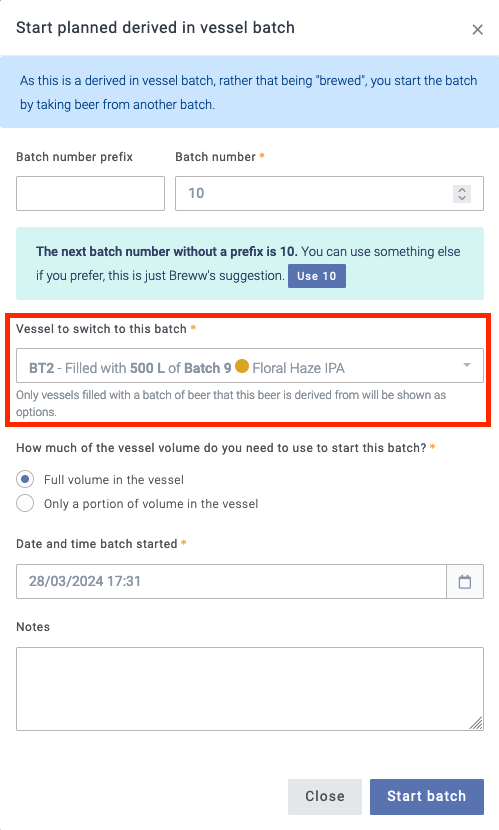
In the example above, the 500 L of Batch 9 in BT2 will become this new batch of the derived in vessel beer.
The second way of starting a derived in vessel beer is by splitting a batch between vessels during a transfer. If you split a batch between multiple vessels, Breww will provide you with the option to turn the transferred volume into one of your planned batches of the derived in vessel beer.
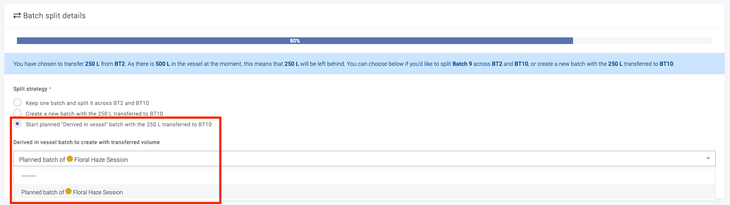
With either method, if you have any recipe associated with this derived in vessel beer, you will then be able to follow the recipe stages as with a standard beer batch.
Derived at packaging
Derived at packaging beers are best used when the additional ingredients or processes are only done at the point of packaging, which can be added as component stock items to each derived at packaging product. An example of a derived at packaging beer would be when you have a standard "IPA" that you sell, and at Christmastime you offer a "Christmas IPA", which is your standard IPA beer but with the addition of a flavouring syrup at the point of packaging.
Unlike alias beers, when you are packaging (racking) a batch of the base standard beer, you can package it directly into the derived beer product. This means that (to use the example above), you can brew a batch of your IPA, and when it comes to racking the beer, you can package some as your "IPA" and some as your "Christmas IPA". At this point, as with all rackings, you can record the stock item (flavouring) that was used for stock tracking and costing purposes.
If you packaged 10 casks of the "IPA" and 10 of the "Christmas IPA", you'd see 10 of each in stock (20 total). If you then sold a cask of the "Christmas IPA", the stock available for that would drop to 9, and the "IPA" would remain at 10. This is the most significant difference between derived at packaging beers and alias beers.
You may also choose to use a derived at packaging beer over an alias beer, even if the actual beer is identical, but you want to keep track of the stock levels differently. For example, you package them into bottles with different labels.
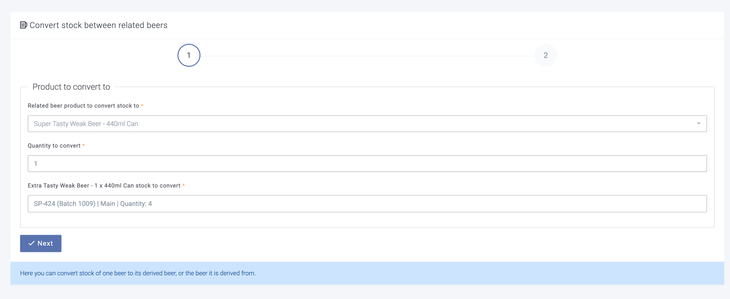
It's also possible to convert the stock of a base beer to its derived at packaging beer or vice versa. To do this, go to the product you'd like to convert and click Actions -> Convert stock between related beers. For a full step-by-step guide, see Converting stock between derived beers.
Setting up a derived at packaging beer and its products
To create a derived at packaging beer, go to Production -> Beers -> New beer and select Derived at packaging as the beer type. The wizard will ask you to select the parent (base) beer, then guide you through entering the beer details and optionally creating products with pricing and tags.
You can also start the wizard with the parent beer pre-selected by navigating to the parent beer's detail page, going to the alias & derived beers tab, and clicking Add new derived at packaging.
Once the derived at packaging beer is created, you can create additional products at any time by navigating to the beer detail page and clicking the Create products button.
Guest beers
Guest beers in Breww allow you to purchase and sell beers from other breweries with full batch tracking and duty management. This functionality is designed for beers that you buy in as finished products and resell, rather than beers you produce yourself.
Setting up a guest beer
-
Create the guest beer — Navigate to
Production->Beers->New beerand select Guest as the beer type. The wizard will guide you through entering the beer details. -
Create guest beer products — During the wizard, you can select which product formats to create and set their pricing and tags. You will also be prompted to enter supplier and purchasing details, including the supplier, tax settings, SKU, quantity per pack, expected price and minimum order quantity for each product. When you create a guest beer product, Breww automatically creates a corresponding stock item for tracking the purchasing side of this guest beer.
You can also create additional products for an existing guest beer at any time by navigating to the beer detail page and clicking the Create products button.
Importing guest beers and their products in bulk
If you have many guest beers to set up, you can use Breww's data importers to create them in bulk rather than using the wizard for each one:
-
Import the guest beers — Head to
Settings->Data imports and updates->Beersand use the beer importer. Set the Production method field to Guest for each guest beer in your CSV file. See Adding beers/drinks for more details. -
Import guest drink products — Once your guest beers have been imported, head to
Settings->Data imports and updates->Guest drink productsto import products for them. This dedicated importer creates the product, its linked stock item, and optionally sets up supplier details all in one step. See Adding products for the full list of available fields.
Managing guest beer stock
Guest beer products work with a linked stock item that represents the purchasing side of the product. This stock item:
-
Is automatically created when you create a guest beer product
-
Can be receipted through Inventory Receipts, just like any other stock item
-
Has expiry date tracking enabled, and batch code tracking enabled by default
-
Generates packaged drink stock, not stock item stock when receipted
To receive guest beer stock:
- Create a Purchase order for your supplier that includes the guest beer stock items
- When the delivery arrives, create an Inventory receipt from the Purchase order
- Add batch numbers and expiry dates as required
- Click Add to stock to complete the receipt
The stock levels of the products always match the stock levels of their linked stock items, and because guest beer products are standard product types (Keg, Cask, Smallpack, etc.), you can:
-
Package from containers just like your own products
-
Auto-assemble multi-packs and mixed-packs containing guest beers
-
Include guest beers in reporting broken down by container type
Guest beer duty settings
By default, guest beers are treated as not being your duty responsibility - the duty has already been paid by your supplier.
However, you can now configure duty handling for situations where you are responsible for the duty:
-
Duty suspense arrangements - If you receive guest beers under duty suspense from a third party, you can configure this so the duty is included in your returns
-
Import arrangements - If you receive guest beer's duty-suspended in the UK, you can specify whether they were received domestically or from abroad
These settings can be configured by going to the supplier and navigating to the Guest beer duty options section, or on individual stock items by going to the guest beer stock item and adding a Supplier duty setting beneath the Suppliers tab, giving you flexibility in how different guest beers are handled.
For more information on configuring duty rates for third-party breweries (including guest beer suppliers and contract brewers), see Configuring duty rates for third-party breweries.
Differences from other beer types
Unlike standard or derived beers:
-
Guest beers never go through a brewing process in Breww
-
They are receipted as finished products through the purchasing workflow
-
Duty responsibility can be configured based on your arrangements with suppliers
Purchasing your own product from a supplier
Sometimes you brew one of your own beers yourself, but occasionally need to buy the same beer in from a supplier — for example, when you can't brew enough to keep up with demand. If you don't want a full contract or collaboration brewing arrangement, and you don't want the beer to become a guest beer, you can enable purchasing on your existing product instead.
The key difference from a guest beer is that the beer stays your own product. It does not become a guest beer, so your pricebooks, trade store, product finder and labels are all unaffected. Brewed and purchased stock share a single stock pool, so you can sell, assign, package and report on them together.
When to use this
-
Purchasing your own product — use this when the beer is your own product that you normally brew, but occasionally buy in. Brewed and purchased stock are combined into one stock level.
-
Guest beers (above) — use these for finished beers from other breweries that you only ever buy in to resell, and that are not your own product.
Enabling purchasing for a product
-
Go to
Products, find the product, and open its detail page. -
Click
Actions->Enable purchasing from suppliers. -
In the window that opens, complete the General details:
-
Batch tracking — whether you want to record a batch code each time you receive purchased stock (on by default). Expiry date tracking is always enabled.
-
Receipt notes — optional notes shown to whoever receives the stock (for example, "Check the best-before date on arrival").
-
-
Optionally complete the Supplier details to link a supplier you buy this beer from, including the quantity you receive per order, the supplier's SKU, the expected price, the supplier's VAT treatment and any minimum order quantity. If you select a supplier, you must also enter the quantity you receive when you order it.
-
Click Enable purchasing from suppliers.
Breww creates a linked stock item that represents the purchasing side of the product, and a Related stock item card appears on the product's detail page so you can jump to it. You can only enable purchasing for individual packaged-beer products that you brew yourself (such as a single keg, cask or small-pack single) — it isn't available for alias products, guest beers, or products that already have purchasing enabled.
The product stays your own, non-guest product throughout. The linked stock item uses the same mechanism as guest beers behind the scenes, so you may see it grouped alongside your guest beer stock items.
Receiving and managing purchased stock
Purchased stock is received through the linked stock item, using the normal purchasing workflow — purchase orders, inventory receipts, or the Add stock button on the stock item page. Whichever route you use, the units are added to the product's normal sellable stock, ready to sell and assign to orders alongside anything you brewed yourself.
As with guest beers, purchased stock is treated as duty already paid by your supplier, so receiving it does not create a duty liability. If you are responsible for the duty, the same guest beer duty options apply on the supplier or the linked stock item. If you linked a supplier when enabling purchasing, an inventory receipt for this stock must have a supplier set before it can be finalised.
Because brewed and purchased units share one stock pool, adjusting stock is split across two places:
-
To add purchased stock, use the linked stock item. The product's own
Actions->Stock adjustment-> increase screen lists only the batches you brewed yourself, and shows a banner linking through to the stock item, so purchased stock always carries the correct supplier, cost and duty details. -
To reduce stock (for example, beer that was lost or spoilt), use the product's standard
Actions->Stock adjustment-> reduce flow. The Reduce stock button on the linked stock item page takes you there.