In Breww, you have the ability to assign stock items to products or container types. This is really useful for keeping track of packaging items used when packaging your products, but it is important to consider what stock items should be assigned directly to a product and which should be assigned to a container type.
Deciding whether to assign stock items to a product or container type
In the main, this decision is made simply by deciding on one thing. Is this stock item always used when I package into this container type, or is it only used when packaging certain products that use this container type?
Assigning stock items directly to the container type
As an example, I could have a container type of 330ml can. Each time I package into a 330ml can, I may want Breww to consume 1 x 330ml Aluminum Can and 1 x Can Lids/Ends 330/440/500ML, in which case assigning these two stock items to the container type is perfect. (This will also mean that if I package a 6-pack, for example, Breww will know to use 6 of each of the stock items.)
Assigning stock items directly to the product
If, unlike the example above, some of my cans are black cans and some are aluminium cans, then assigning them to the container type no longer works as it depends on what beer I am packaging into cans as to which colour of can I use. In this case, I would need to assign the right stock item to the right products. For example, I might have the following two products with the following setup:
- 1 x 330ml Can - Beer A (Smallpack singe)
- 1 x 330ml Aluminum Can
- 1 x Can Lids/Ends 330ML
- 1 x 330ml Can - Beer B (Smallpack singe)
- 1 x 330ml Black Can
- 1 x Black Can Lids/Ends 330ML
It is also important to think about the product when assigning, as this is what is needed for the entire product, not per container for a 6-pack. For example, you might have the following:
- 6 x 330ml Cans - Beer A (multipack)
- 6 x 330ml Aluminum Can
- 6 x Can Lids/Ends 330ML
- 1 x 6 Can Branded Case
Assigning stock items to a product is also a little different as you can choose whether stock items directly assigned to a product are:
- Used when product is initially packaged - The stock item is used when the product is packaged directly from a vessel, cask or keg.
- Used when product is assembled from existing stock - The stock item is used when assembled from a base product. e.g. if assembling a 6-pack from single cans, would you want Breww to consume a 6-can case?
- Added back to stock when product is disassembled - The stock item is added back to stock when this product is disassembled. e.g. if disassembling a 6-pack into single cans, would you want Breww to return the 6-can branded case to stock to be reused?
Using smallpack packaging formats for pack-size-specific stock items
If you have stock items that are always used for a particular pack size of a container type -- regardless of which beer or drink is being packaged -- you can use a smallpack packaging format instead of assigning the stock item to each individual product. For example, if every 24-pack of 330ml cans always uses a cardboard tray, you can create a packaging format for "24 × 330ml Can" with the cardboard tray as a component, and Breww will automatically add it to all matching multipack products.
This is particularly useful when you have many multipack products that all share the same pack-size-specific stock items, as it saves you from setting up the same stock items on every product individually and keeps everything in sync if you need to make changes later.
For more details, see our dedicated guide on Smallpack packaging formats.
Assigning some stock items to a container type and some to a product.
It is very likely that some of your products will be best set up by having both stock items directly assigned to the container type (For example, if you always use the same stock items when packaging into cans, you may assign the can components to a container type), but the product itself may also use a 24 can branded case which would be directly assigned to the product instead, as it is not used when you package into single cans, 12 packs or 6 packs for example, and should only be consumed when specifically a 24 pack is created.
24 x 330ml Cans - Beer A (multipack)
- Directly assigned to the container type of 330ml can
- 1 x 330ml Aluminum Can
- 1 x Can Lids/Ends 330ML
- Directly assigned to the product
- 1 x 24 Can Branded Case
If you use the same pack-size-specific stock items (such as a 24-can cardboard tray) across many products, consider using a smallpack packaging format instead of assigning the stock item directly to each product. This keeps all your products in sync and reduces manual setup.
Ignoring container type default stock items for a specific product
In some cases, you may have default stock items assigned to a container type that apply to most of your products, but one or more specific products should not use those container type defaults. Rather than removing the defaults from the container type (which would affect all products using it), you can tell Breww to ignore the container type's default stock items for a specific product.
To do this, edit the product by going to Products -> All products, selecting your product, then clicking Actions -> Edit. Under the Product basic details section, you will find the Ignore container type default stock items checkbox. When this is enabled, only stock items directly assigned to the product will be consumed during packaging — the default stock items from the container type will be skipped entirely for this product.
This is useful when a particular product uses completely different packaging materials from what is set as the default on its container type. For example, you might have a 330ml can container type with default stock items of an aluminium can and a can lid, but a specific product uses a pre-printed can that you track as a different stock item assigned directly to the product. By enabling this option, you avoid the container type's aluminium can and can lid being consumed in addition to the product's own pre-printed can stock item.
When this option is enabled, the product detail page and edit page will display a warning banner in the container type stock items section, and the container type stock items will appear greyed out to make it clear they will not be used during packaging.
This setting only affects packaged beer product types (cask, keg, smallpack single, smallpack multipack and smallpack mixed-pack). It will not appear for stock item products, guest beer products or service products.
How to assign stock items
As mentioned above, there are two options that you can choose from to automatically consume stock items when packaging a product. Once you have decided what is the best option for you, the below information will guide you through how to set this up.
Assign directly to a container type
To assign stock items directly to a container type, navigate to Containers, then under the header container types, and on the relevant container type, use the view button. This will take you to the container type's details screen. From here, you can see any stock items already directly assigned to the container type or some guidance on how to add them if none are assigned.
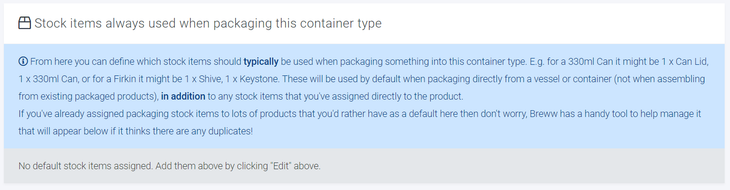
To begin assigning stock items to this container type, you will need to select the edit (pencil icon) button. Once the container type edit window is open, scroll down to the section headered Default packaging stock items, and you can assign the stock items that are consumed whenever something is packaged into this container type.
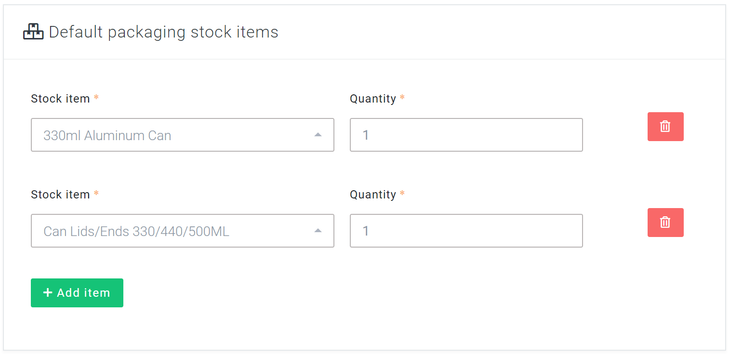
Once you have added your default packaging stock items, you just need to ensure you use the Save button at the bottom of the page, and you're all set. From that point on, whenever you package any beer or alcoholic drink into that container type, your chosen stock items will be consumed, so long as they are in stock.
Stock items that are already included in a smallpack packaging format for this container type cannot be added as default stock items on the container type. This prevents the same stock item from being consumed twice during packaging.
Assign directly to a new product
When creating a product in Breww (In Products->New product), one of the stages will ask "Do you use any stock items when packaging or assembling .... ?" Here you can define the stock items used when they are used and if they are returned to stock when disassembled.
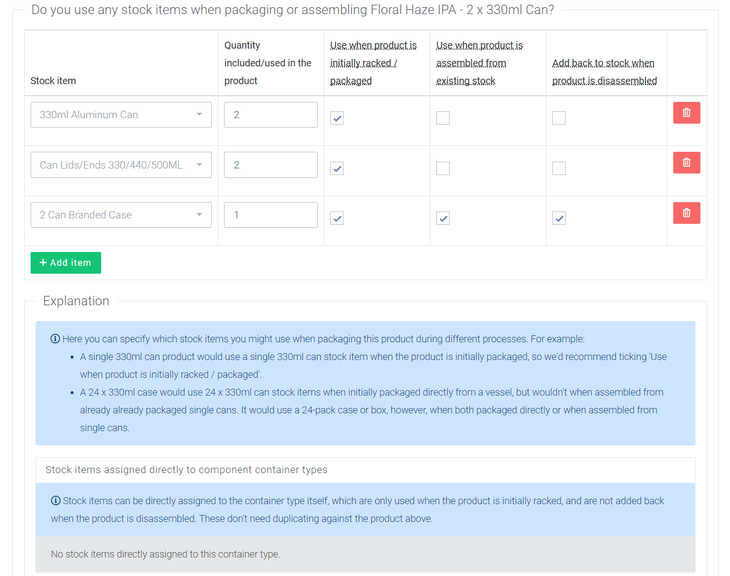
On this screen, you will also see Stock items assigned directly to component container types, meaning Breww will look at all the container types within this product (for a mixed pack, this could mean bottles and cans, for example) and will show you if any stock items are already directly assigned to the container types themselves. Crucially, you will want to ensure you do not add the same stock item directly to the container type and the product, as this would double the amount consumed.
If a smallpack packaging format exists for the container type and pack size of the product you are creating, the format's stock items will also be shown on this screen. These will be automatically added to the product and do not need to be duplicated.
Assign stock items to an existing product
If you need to add component stock items to an existing product, this can be done by going to Products-> All products finding your product and using the (view product) button. This will open the product details page. To add component stock items to this product, you will need to click Actions->Edit. This will open the Update product screen, and you will need to navigate to the Component stock items tab, where you can assign your stock items.
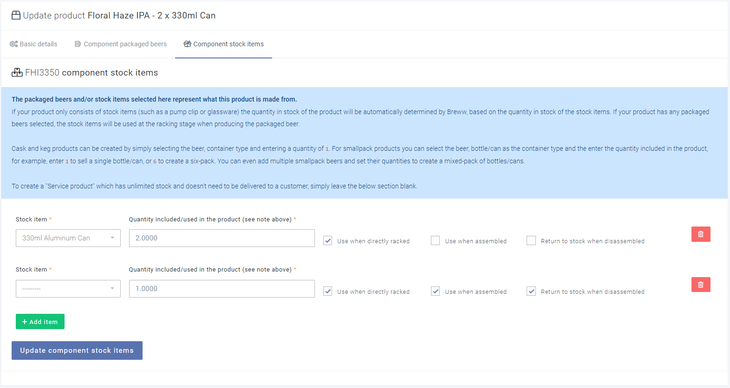
If the product is linked to a smallpack packaging format, stock items from the format will be displayed in a separate read-only section. To change those stock items, edit the packaging format instead.
Packaging
When packaging into your product from a vessel, Breww will look between stock items directly assigned to the product and to the container type and pre-populate the stock items used page when packaging.
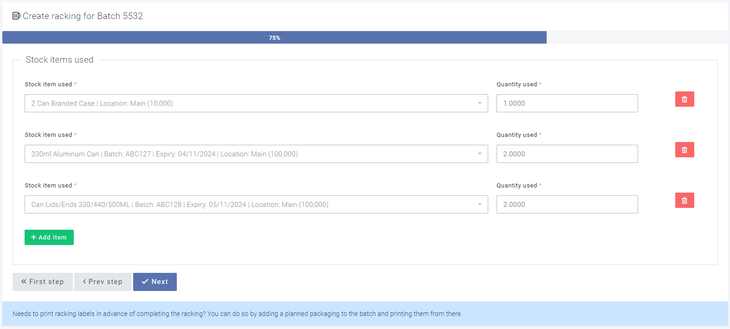
If you do not have enough stock of the stock item to complete the packaging, a yellow banner will appear at the top of the "stock items used" page to notify you that Breww attempted to add these stock items, but it was not possible as there was not enough stock, however, this will not prevent you from packaging the product. If you genuinely don't have the stock, you will, of course, want to stop here and cancel the packaging. If you do have the stock, then you will want to abort the packaging, correct the stock levels and then retry.
Adding additional items used when packaging and accounting for damages
During the packaging process, there may be some additional ingredients or materials used. This could be for a number of things; for example, you may wish to add a number of additional cans to account for any damages, in which case you can increase the quantity of the existing stock items so if 200 cans were actually packaged, but an additional 20 were damaged you would enter 220 cans used, to account for the stock used and cost. Equally, you may choose to add a new stock item, such as 2kg CO2 used in purging for your packaging of 200 cans, for example.
Just getting started with Breww? The next guide is Price books and pricing or you can return to the Getting Started Guide.