👋 This article is part of our Getting Started guides. If you are new to Breww and have found this guide without first reading our 🧰 Getting Started Guide, you will want to head there first. Not new to Breww? 🚀 This guide might not be quite right for you as it is aimed at your initial setup.
In Breww, Products are the items you sell. If you are following the getting started guide, you will have already created your 'stock item products', but the bulk of your products will likely be your own packaged beer products, which going forward, you will be producing in Breww's production suite. These products will be a combination of a container type and one of your beers. Your products can be single-unit products, such as a bottle, or a multipack made up of several bottles. It is recommended that a single-unit product is always created in Breww, even if you don't sell the product as a single unit. This will mean that you can utilise Breww's auto-assembly/disassembly feature when you start processing sales in Breww, and ensures accurate stock figures.
It is also possible to create mixed beer pack products in Breww. These cannot be imported but are covered in more detail at the end of this guide.
If you use any stock items when packaging a product, such as a can or a shive, these can be added after this import in the next stage of the getting started guide. This importer allows you to bring in the list of products that you sell, but your actual stock levels will be brought in via a separate importer.
Derived beer products
If you have created derived at packaging or derived in vessel beers, then these products can simply be included alongside your regular beer products in the data import.
You should not attempt to upload your alias products in this import! These are created and associated with standard beer products after completing this import. You will need to have created your standard beer products before creating your alias products. We recommend completing this import and then returning to read the below sections on Alias beer products, and Mixed-pack products.
You can import your packaged beer products by heading to Settings->Data import and updates-> Packaged beer products and following the Data import guide.
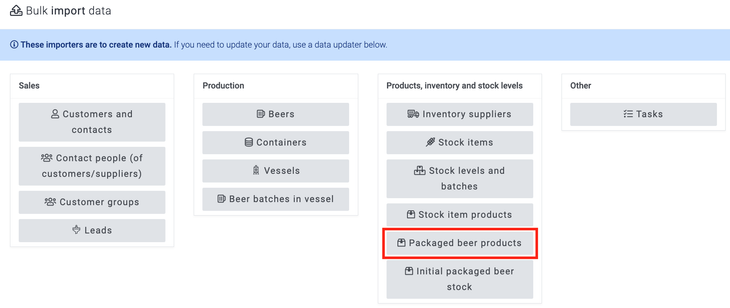
You will be able to enter a price for each product in this import. This should be the standard base price for the product you are creating, and any varying pricing can be created later in the Price books section of Breww.
The Packaged drink products importer only shows beers/drinks with a Standard production method. If you have guest beers, their products should be imported using the dedicated Guest drink products importer described below.
Guest drink products
If you have created any guest beers (drinks purchased from other businesses for resale), you can import their products using the dedicated Guest drink products importer. This importer creates both the product and its corresponding stock item in one step, and also allows you to specify supplier and purchasing details during the import.
To use this importer, head to Settings->Data imports and updates->Guest drink products and follow the Data import guide.
The Guest drink products importer includes all of the same fields as the Packaged drink products importer (drink, container type, quantity, price, etc.), plus the following additional fields:
- Batch tracked - Whether you track the batch codes of this guest drink. Defaults to "yes".
- Receipt notes - Notes to show when receiving this stock item.
- Supplier - Optionally link the guest drink's stock item to one of your existing suppliers.
- Supplier SKU - The supplier's SKU for this item.
- Supplier pack size - When you buy one of this SKU from the supplier, how many do you receive?
- Supplier expected price (net) - The price per pack from the supplier.
- Supplier tax rate - The tax rate applied by the supplier.
- Supplier MOQ - The supplier's minimum order quantity (of the supplier pack size).
If you specify a supplier, you must also provide the Supplier pack size, Supplier expected price and Supplier tax rate. If you do not need to link a supplier during import, you can leave all supplier fields blank and add supplier details later from the stock item page.
Each drink available in the Guest drink products importer must have been created with the Guest production method. If your guest beers are not appearing in the importer, check that they were created as guest beers. See Alias, derived & guest beers for more information.
Alias beer products
If you have created any alias beers, you will now be able to create your alias beer products. Your standard, derived at packaging and derived in vessel beer products, will now be in the Products section of Breww.
-
Head to the product page for the standard beer product you want to create an alias product for.
-
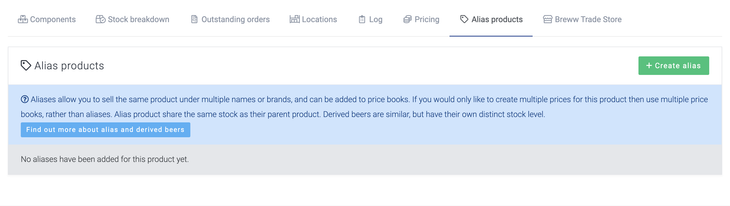
Go to the “Alias products” tab and add the alias products, selecting the alias beer you just created to allow you to sell the beer under the other name.
Mixed-pack products
You can also create combinations of small pack products as mixed packs in Breww, for example, a 'Brewery mixed case' consisting of 3 X Beer A, 3 X Beer B, and 3 X Beer C. However, due to the complexity of these, they will have to be made after your import via the Products tab in Breww. You can create a mixed-pack product by heading to Products->New product->Smallpack mixed-pack.
Just getting started with Breww? The next guide is Assigning Stock Items or you can return to the 🧰 Getting Started Guide.