👋 This article is part of our Getting Started guides. If you are new to Breww and have found this guide without first reading our 🧰 Getting Started Guide, you will want to head there first. Not new to Breww? 🚀 This guide might not be quite right for you as it is aimed at your initial setup.
Importing your 'standard' beers/drinks 🍻
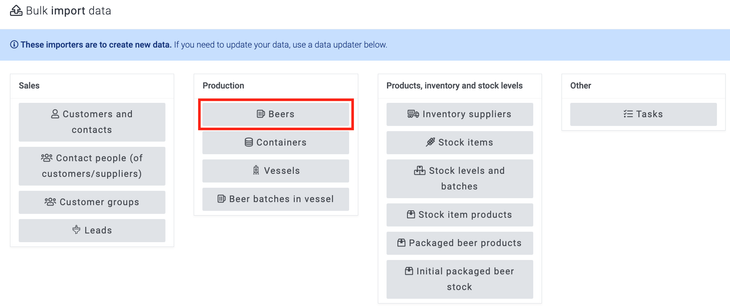
You can add your beers (and other drinks) to Breww when first getting started by heading to Settings->Data imports and updates->Beers.
If you are producing a different drink type to beer, you will first need to set these up by following the Creating a new drink type step in the Managing your drink types (beer, spirits, cider, wine, etc) help guide, before continuing.
Managing your drink types (beer, sprits, cider, wine, etc)
If you are producing beer, you will not need to set this up as a drink type and can continue. Please note that this importer is to bring in the names of your beers/drinks, not the product or stock. For example, a beer should be entered as 'Floral Haze IPA' and not 'Floral Haze IPA Can'.
Production method
The beer importer includes an optional Production method field, which allows you to specify whether you produce the beer yourself (Standard) or purchase it from other businesses for resale (Guest). If left blank, this defaults to Standard.
Setting the production method to Guest during import means the beer will be created as a guest beer, which you can then create guest drink products for. For more information on guest beers and how they differ from standard beers, see Alias, derived & guest beers.
Beer/ Drink styles
When importing your beers into Breww it will be mandatory to set a beer style, and Breww has a list of beer/drink styles that you can choose from; however, you can create new styles when importing your beers simply by entering the style in the appropriate field on the import.
Best before dates
In Breww, you can set your best-before dates on a beer for cask, keg and smallpack, or alternatively, create Best-before date rules (recommended). Creating best-before-date rules will save you time moving forward when creating new products and allow you to set best-before dates that are more specific to certain situations, for example, if you have different best-before dates for steel kegs and keykegs. Best before date rules will be covered later in the getting started guide, so if you would like more control of your best before dates and would like to set rules, then please leave the Best before fields in the data import blank. If you would rather import your best before dates on the beer packaging type, then you can include these on the import.
If you then follow the Data import guide and import your beers. If you have chosen to create best before date rules, your best-before-date rules will be set later on in the getting started guide.
Creating beers individually
If you prefer to create beers one at a time rather than importing in bulk, you can use the beer creation wizard. Navigate to Production -> Beers -> New beer to open the wizard. This guides you through selecting the beer type, entering the beer details, and optionally creating products with pricing and tags all in one flow. For more details, see Beers/drinks and packaging approval.
📕 Beers that you sell under multiple names
It is important to note that the beers import is for beers that are brewed as you plan to sell them. If you have any beers that are "Alias" (rebadged) (where you sell two identical beers, but under different names) or "Derived Beers" (where one beer is a post-fermentation modification of another "base beer"), then these will need to be entered into Breww separately and should not be entered in this import. The step to create your Alias and Derived beer products is covered at a later stage in the getting started guide after you have created your products, so don't worry about entering these now!
Just getting started with Breww? The next guide is Adding your derived and alias beers or you can return to the 🧰 Getting Started Guide.