
Inviting your team
Breww does not charge per user, allows you to add multiple new users to your Breww account with no extra charge, and gives flexibility on what areas of Breww you allow invited users to access.
What is a user account in Breww?
In Breww, a user account refers to a personal account created by an individual using their email address. This account is associated with the users' email rather than a specific brewery.
When someone is invited to join a brewery on Breww, they use their user account to access that brewery. However, the user account itself is distinct from any specific brewery and can be used across multiple breweries within the Breww platform if they are invited to join others.
If you remove their access to your brewery, they can still log in to Breww, but they won't be able to access your brewery or its data. However, if they're part of another brewery, they will still have access to that one even after losing access to yours.
Inviting a new user to join your brewery
New users can be added by heading to Settings -> Invite new users. You'll need the Admin permission to see this option.
Enter the email address of the person you'd like to invite. You can invite several people at once by separating their addresses with spaces, new lines, commas or semicolons. Everyone listed receives the same invitation and joins the same groups.
Then choose the User groups to add to. At least one group must be picked, and you can select as many as you need:
- Admin
- Containers
- Deliveries
- Excise duty
- Production
- Reporting
- Sales
- Settings
Any of your own custom groups that grant at least one permission are listed here too, marked with a Custom group badge. A custom group with no permissions on it isn't offered, as it wouldn't give the new user access to anything.
The groups chosen here decide the permissions the user starts with. Once they've accepted, an admin can add further groups or grant additional permissions to them individually. See User groups and permissions for how the two combine.
Once the details are filled in, you can hit Send invite. Breww shows Invitation sent to followed by the email address for every address you enter. It looks the same whether or not the person already has a Breww account, and email addresses are matched ignoring capital letters, so Sam@Example.com and sam@example.com are the same person.
Nobody is added to your brewery until they accept the invite.
Until your account is verified, you can invite up to 5 people a day. See Why some features need a verified account.
The new user will receive an invitation email from Breww, where they will have two links:

- A link to create a Breww account using their email address. This is entirely separate from the brewery that has invited the new user, as the new user will need a unique Breww account before they can accept an invite to a brewery. Once their account is created they will see the invite.
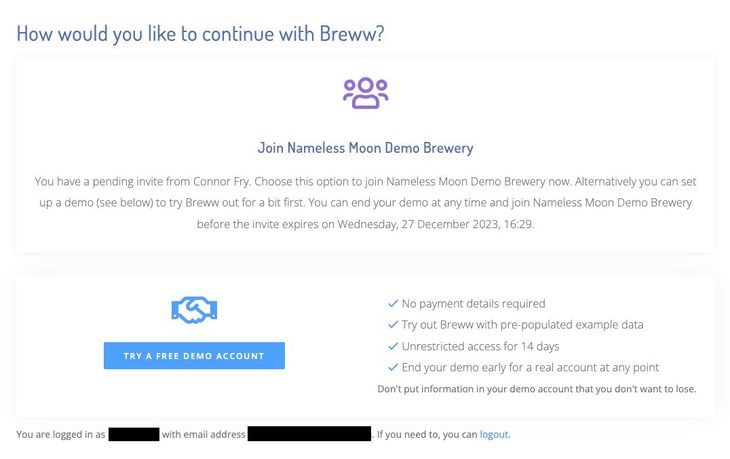
- If a user has already created a unique account with Breww using their email address, they can select the second link, which is the invitation to join the brewery with the access you granted them. Existing users log in and then accept the invitation.

When the user accepts the invite, they will be asked to enter a verification code, which is included in the email sent to them.

If someone signs up with an email address that already has a Breww account, Breww doesn't create a second account. They are emailed a link to log in, and a link to accept the invitation once they have. If they have forgotten their password they can reset it from the login page.
If the person already uses Breww
Someone who already has a Breww account, including one in another brewery or a test account, receives the same invitation email. They log in and accept it, and can then switch between breweries at any time from their profile in the top-right of any page.
If they are already a member of your brewery, or already have a pending invitation from you, no new invite is sent and you are told so.
Tracking, sharing and revoking invites
Every invite you send is listed in the Invitations sent table on the same page, showing who it was sent to, who sent it, which groups it grants, and its current status:
| Status | Meaning |
|---|---|
| Sent | Waiting to be accepted |
| Accepted | The user has joined your brewery |
| Expired | The invite passed its expiry date without being accepted |
| Revoked | An admin cancelled the invite |
Invitations expire after 14 days. If someone tries to accept after that, it won't work and you'll need to send them a fresh invite.
While an invite is still pending, the table shows an Invite link you can copy and send to the person yourself, which is handy if the email hasn't reached them. You can also cancel a pending invite with the red bin icon, and there's nothing to stop you inviting the same person again afterwards.
An invite can only be revoked by the admin who originally sent it. If they aren't available, simply wait for the invite to expire, as an unaccepted invite grants no access.
Once the invite is accepted
The new user's profile will appear in Settings -> Users & security settings. Selecting their profile gives you an overview of what areas of Breww they currently have access to, and options to add other user groups and permissions. Manage user's groups will allow you to give the user access to the related content for that group within Breww, whereas Manage user's additional permissions will allow you to assign a more specific set of permissions to the user. By selecting Admin, they will automatically get full use of all these areas.
For a full explanation of how groups and additional permissions combine, and what each permission allows, see User groups and permissions.
When a team member leaves or changes roles
Before removing a user's access to your brewery, it's important to transfer their outstanding work to another team member. This ensures no tasks are left unattended and customer relationships continue smoothly.
Use the Transfer user data wizard to quickly reassign:
- Outstanding tasks: All pending and in-progress tasks assigned to the departing user
- Customer salesperson assignments: All customers where the user is listed as the salesperson
To transfer data:
- Go to Settings -> Users & security settings
- Click Actions & tools -> Transfer user data
- Follow the three-step wizard to select what to transfer and who should receive it
See Transferring user data between team members for detailed instructions.
Just getting started with Breww? The next guide is Creating sites & locations or you can return to the Getting Started Guide.