
COGS by stock item and utility/other cost report
The COGS by stock item and utility/other cost report shows what your cost of goods sold is made of. For everything you invoiced in a period, it splits the cost of what you sold into the ingredient and packaging stock items that went into it and the utility/other costs recorded against your batches, such as wages, electricity, water or rent. You can see at a glance where your money goes, and which costs are worth working on first.
Find it under Reporting → Pre-built Sales reports → Margin & profitability, next to Margin by product. You can also open it for a single product straight from the Margin by product report (see "Opening it from Margin by product" below).
Running the report
Choose a reporting period and how detailed you'd like the breakdown to be, add any filters, then press Run report.
The report covers invoices and credit notes issued in the period, the same sales as the Margin by product report. It runs in the background and shows its progress as it goes, so a long date range can take a little while but you can always see how far through it is.

Group by
Group by sets how detailed the breakdown is:
-
Stock item type (the default) - one row for each stock item type, such as Ingredient or Packaging, and one for each utility/other cost.
-
Stock item sub-type - one row for each stock item sub-type, such as malt or hops, within its type.
-
Stock item - one row for each stock item and each utility/other cost.
-
Product and stock item type, Product and stock item sub-type and Product and stock item - the same three levels, split by product. Each product's rows sit together, and a Cost per unit sold column shows what each part of the cost adds to every unit of that product you sold.
Utility/other costs appear under the names of your own cost types, so a brewery that records "Brewing wages", "Electricity" and "Water" sees each of those as a line of its own.
Filters
The Filters section narrows the report to the sales you're interested in:
- Product - show the breakdown for one product only.
- Drink types - only include certain drink types. If none are selected, all are included. This only shows if you have more than one drink type.
- Guest beer and stock item products - choose Include to cover everything you sold, Exclude to focus on the products you make yourself, or Show only these to see just the guest beer and stock item products you sell, such as merchandise. Contract brews count as your own production.
- Stock item type or sub-type - show one stock item type, or one sub-type within a type, so you can concentrate on, for example, your packaging costs. Utility/other costs are hidden while this is set.
- Stock transfer orders to include - which stock transfer orders to count as sales, as on the other margin reports.
Revenue and returns
These options match the ones on Margin by product, so the two reports' figures line up:
- Include additional invoice charges in revenue - spreads additional charges on invoices to customers across the value of each product sold. Non-revenue charges, such as refundable container deposits, are never included.
- Take credit notes off revenue - removes the totals of credit notes issued in the period from revenue.
- Remove returned products - removes the cost of products returned from a delivery, from both the breakdown and the summary's cost of goods sold.
Reading the results
The summary
Above the table, a summary shows your Revenue, Cost of goods sold, Duty, Total cost and Margin for the sales in the report, each with its % of revenue. These figures are worked out in exactly the same way as the Margin by product report, so for the same date range and options, the two reports always agree.

The breakdown
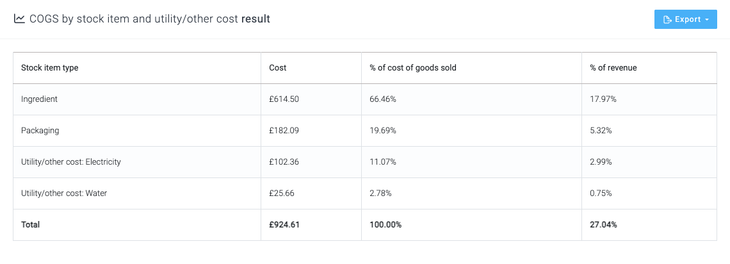
Each row of the table shows:
-
the stock item type, sub-type, stock item or utility/other cost the row is about (and the product, when grouped by product)
-
Cost - how much of your cost of goods sold it accounts for
-
Cost per unit sold - when grouped by product, the row's cost divided by the quantity of that product sold
-
% of cost of goods sold and % of revenue - the row's share of the summary's cost of goods sold and revenue
The largest costs come first. When grouped by product, each product's rows are kept together instead, largest first within each product. A Total row at the bottom adds everything up.

Focusing on one product or type of cost
When you filter by product or by stock item type or sub-type, a note at the top of the results says exactly what is shown, for example "Showing Packaging only. The summary still covers everything sold."
Filtering by stock item type or sub-type narrows the table but leaves the summary covering everything sold, so the percentage columns show that cost's share of your whole cost of goods sold and revenue. That makes it easy to answer questions such as "how much of our revenue goes on cans?".
Filtering by product, drink type, or guest beer and stock item products narrows the summary as well, so you see the cost and margin of just those sales.
Opening it from Margin by product
On the Margin by product report, each product row has a View COGS by stock item and utility/other cost for product button in its Actions column (the layers icon). It opens this report for that product, with the same date range, stock transfer orders and revenue and returns options, grouped by stock item type. From there you can change the Group by to dig into the detail.
The breakdown is of the actual costs Breww recorded, so the button shows when Margin by product's Cost basis is Actual costs. See Cost basis on margin reports.

Related
- COGS by cost type report - the cost of your batches by category, per packaged unit, for the batches started in a period.
- COGS vs target report - compare what your batches actually cost against your target costs.
- Batch utility/other costs - recording costs such as wages and electricity against your batches, and managing your cost types.
- Cost basis on margin reports - costing your sales at target rather than actual on the margin reports.