
MYOB accountancy integration
Breww integrates with MYOB Business (including AccountRight company files) as one of its automated accountancy integrations, for breweries in Australia and New Zealand.
Most of the general setup process (mapping customers, choosing accounts, sync settings and enabling the sync) is the same as for all of Breww's automated accountancy integrations, so please read the main Accountancy guide first. This page covers what's different about MYOB.
Connecting Breww to MYOB
-
Go to Integrations → Accountancy and click Set up MYOB integration.
-
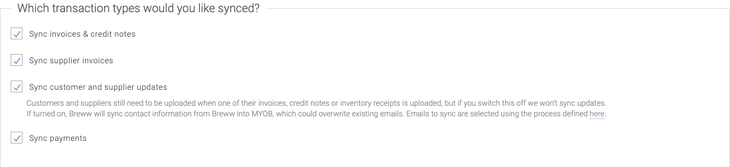
Choose which types of data you'd like Breww to sync, and any of the extra options, then click Connect. You can change all of these later from the integration's Settings tab.
-
Sign in to MYOB. On MYOB's consent screen, choose the business (company file) you'd like Breww to sync with, and allow access.
-
You'll be returned to Breww. Nothing syncs yet, so you can map your customers and suppliers, choose your accounts and review your settings before you enable syncing.


Breww remembers the business you chose. Re-authorising later keeps Breww connected to that same business, even if you pick a different one on MYOB's consent screen.
If Breww loses access to MYOB
Breww's connection to MYOB expires after 12 months. When it expires, or if Breww's access is removed in MYOB, Breww disables the integration and lets you know. You can see when the connection expires on the App Connections page in MYOB (see Disconnecting). To reconnect:
- Go to Integrations → Accountancy and, next to MYOB, select Actions → Re-authorise access.
- Sign in to MYOB and allow access again.
- Back in Breww, select Actions → Enable integration next to MYOB to start syncing again. Re-authorising doesn't do this for you.
Disconnecting
MYOB doesn't let Breww remove its own access, so after you disconnect the integration in Breww, remove Breww in MYOB too:
- In MYOB, select your business name in the top-right corner, then App Connections.
- Select Disconnect next to Breww.
Accounts and jobs
When you import accounts (from Accounts & tracking categories in the Data import & mapping section of the integration's configuration), Breww downloads your MYOB chart of accounts.
Your MYOB jobs are imported as tracking categories, shown as the job number followed by the job name. Set a job on a product, customer, customer type or parent company in the same way as any other tracking category, and Breww adds it to each matching line it uploads.
Tax codes
MYOB needs a tax code on every line, so Breww chooses one from the line's tax rate:
| Your brewery's country | Tax rate | MYOB tax code used |
|---|---|---|
| Australia | 10% | GST |
| Australia | 0% | FRE |
| Australia | 0%, delivered outside Australia | EXP |
| New Zealand | 15% | GST |
| New Zealand | 0% | Z, or E if you don't have a Z code |
| New Zealand | 0%, delivered outside New Zealand | Z |
If you don't have the code listed, Breww uses another GST tax code at the same rate: the default tax code on the line's account if it has that rate, or otherwise the only GST tax code at that rate.
- If MYOB has no tax code at a rate you use, Breww raises a sync message asking you to add one. Once you've added it in MYOB, Breww retries the upload.
- If MYOB has several tax codes at a rate and Breww can't tell which one a sale belongs in, Breww raises a sync message asking you to contact the Breww support team, so we can set the right one for you.
Invoices and credit notes
MYOB doesn't have draft invoices, so each invoice and credit note is posted to your MYOB ledger as soon as it's uploaded. Credit notes are recorded in MYOB as negative sales, so they appear in MYOB's sales list alongside your invoices.
Invoice and credit note numbers
MYOB allows invoice and credit note numbers of up to 13 characters. If a Breww number (including any prefix) is longer, Breww keeps its last 13 characters, so the start of the number is dropped. The full Breww number is always added to the document's journal memo in MYOB, together with the customer's name, so you can still find it.
If you set an invoice or credit note prefix for MYOB, keep it short so your numbers stay within the limit. You can set these when you connect, or later from the integration's Settings tab.

The invoice's reference (such as your customer's purchase order number) is sent to MYOB as the customer PO number, which MYOB limits to 20 characters. Longer references are shortened to fit.
Voiding invoices and credit notes
MYOB doesn't have a void status, so when you void an invoice or credit note in Breww, Breww deletes it from MYOB.
Other things to know
- Rounding. If MYOB's totals for a document come out slightly different from Breww's, Breww adds a small Rounding adjustment line in MYOB so the two match.
- Duplicates. If MYOB already has a document with the same number, for example from an earlier upload attempt, Breww links to it if it matches rather than posting a second copy. If it doesn't match, Breww raises a duplicate number sync message, so you can renumber or remove the one in MYOB.
Payments
Payments sync both ways. Payments you record in Breww are uploaded to MYOB as customer payments, and payments recorded in MYOB against invoices that Breww uploaded are downloaded back into Breww.
Payments are synced per invoice
MYOB can't hold money on a customer's account, or a payment that isn't applied to an invoice. So Breww syncs each payment against the invoices it pays:
- A payment in Breww that pays several invoices becomes a separate MYOB customer payment for each invoice.
- Payments on account aren't uploaded. Once you allocate the payment to invoices in Breww, each allocation is uploaded against its invoice.
Where payments are recorded
Payments are recorded straight into the bank account you've chosen in Breww (your default bank account, or the account set for that payment method), rather than into MYOB's Undeposited Funds account.
MYOB has a fixed list of payment methods with no bank transfer option, so Breww only sends the payment method when it's Cash or Cheque. Other payments reach MYOB without a payment method. When Breww downloads a payment from MYOB, card payment methods (such as EFTPOS, Visa or Mastercard) come into Breww as card payments.
Payments already recorded in MYOB
Before uploading a payment, Breww checks how much is still due on the invoice in MYOB. If you've already recorded the same payment in MYOB, Breww links to that payment instead of uploading a second one.
Refunds and reversed payments
MYOB can't take a payment back off an invoice, so Breww can't upload a refund or reversal of an invoice payment. Breww raises a sync message asking you to delete or reverse the payment in MYOB as well, so both systems show the same amount due.
Credit notes
- Allocating a credit note to an invoice in Breww is uploaded to MYOB as a credit settlement.
- A cash refund of a credit note in Breww is uploaded to MYOB as a credit refund, paid from the bank account set in Breww.
- Allocations and refunds made in MYOB aren't downloaded into Breww, so please always allocate and refund credit notes in Breww.
Supplier invoices
Finalised supplier invoices are uploaded to MYOB as bills. The bill's number is Breww's supplier invoice number (up to 13 characters, keeping the end of longer numbers, just like invoices), and your supplier's own invoice reference is kept in the bill's supplier invoice number field.
- Attachments. Files attached to a supplier invoice aren't sent to MYOB.
- Editing or deleting. If you edit or delete a supplier invoice that's already in MYOB, Breww warns you first. Deleting it in Breww doesn't delete the bill in MYOB, so remove it in MYOB yourself if you need to.
Other currencies
To sync documents in another currency, your MYOB plan must include multi-currency, and the customer or supplier in MYOB must be set to that currency. Breww can't change a contact's currency in MYOB, so if it doesn't match, Breww raises a sync message asking you to update it in MYOB. Breww then retries the upload. Documents and payments are recorded in MYOB in their own currency, using the exchange rate from Breww.
Balance sheet syncing
The MYOB integration supports balance sheet syncing, which keeps your stock, WIP, finished goods and cost of goods sold accounts in MYOB up to date as costs move through Breww. You set it up in the same way as with Breww's other accountancy integrations, so please read the Balance sheet syncing guide first. This section covers what's different about MYOB.
- General journals. Breww posts its balance sheet entries to MYOB as general journals.
- Tax code. Every journal line uses the N-T (Not Reportable) tax code, so stock and cost movements stay off your GST reports. If your company file doesn't have an N-T tax code, the lines are posted without one.
- Changes to existing journals. When a cost changes in Breww, Breww updates its existing journal in MYOB, which keeps its general journal number. If the journal is in a locked period, Breww posts a new adjustment entry instead (see Locked periods and your opening balance date).
- Company files that require reversals. If your company file is set so that transactions can't be changed and must be reversed instead, Breww never edits or deletes its journals in MYOB. It posts an adjustment entry for each change, and reverses a journal it no longer needs (for example, when an inventory receipt is moved back to draft) rather than deleting it.
Locked periods and your opening balance date
- Locked periods. MYOB rejects anything dated in a period you've locked. Breww raises a sync message, and the item uploads once the period is unlocked.
- Balance sheet journals and your lock date. Breww reads your lock date from MYOB, so balance sheet journals don't wait for a period to be unlocked. A new journal that would fall in the locked period is dated on the first unlocked day instead, and a change to a journal in the locked period is posted as a new adjustment entry.
- Opening balance date. MYOB can't accept anything dated before your company file's opening balance date. Change the date in Breww, or the opening balance date in your MYOB business settings, and Breww retries.
Common sync messages
| Sync message | What to do |
|---|---|
| Breww's access to your company file has been removed or has expired in MYOB. | Re-authorise access, then enable the integration again. See If Breww loses access to MYOB. |
| MYOB has no usable tax code at [rate]%. | Add a GST tax code at that rate in MYOB. |
| MYOB has no standard GST tax code to give new customers and suppliers. | Add a GST tax code in MYOB. |
| MYOB won't accept payments into the account Breww is set to pay into. | Choose a different bank account in Breww, or check the Undeposited Funds account linked in your MYOB company file. |
| Breww can't take a payment back off an invoice in MYOB. | Delete or reverse the payment in MYOB. |
| This document is in [currency], but its contact is set to [currency] in MYOB. | Set the customer's or supplier's currency in MYOB to match the document. |
For anything else, see Upload issues.
What's not supported
- Payments on account, as described in Payments are synced per invoice.
- Downloading credit note allocations and refunds made in MYOB.
- Supplier invoice attachments.
For a side-by-side comparison with Breww's other accountancy integrations, see the data flow tables in the main Accountancy guide.